Showing posts with label Browser. Show all posts

Thursday, January 22, 2009

Convert DOCX Files to DOC Files Using These 3 Quick Methods

The other day, one of the Inside Sales Team approached me with a request. He said that a client of his had sent him a document in a format that he couldn’t open on his system. He said, “I got this document that I can’t open, my computer is asking to go online to find a program to open the file. It’s in a DOCX format. What the heck is that?”
Well, boys and girls, DOCX is Microsoft’s new format used by MS Office 2007. The format is XML compliant and can’t be opened by the older versions MS Office, in particular, older versions of MS Word.
However, if you have MS Office 2007, you can save the document out in the older DOC format to be backward compatible. Since the DOCX format is the native format for Office 2007, you’ll have to make a conscious effort to save out your document in the older format.
Now, it’s not always convenient to say to a client, “Hey, I’m still using the older version of MS Word and don’t want to cough up the $500 bucks to buy the latest version of MS Office. Could you save your document in the older format?” Doesn’t leave the best impression in the minds of your client.
However, there are some options you have at your disposal:

  1. Download and install the Microsoft Office Compatibility Pack for 2007 Office. If you are using Microsoft Windows XP or Vista with an older version of the Microsoft Office suite, you can load the Compatibility pack from here to give your older version of Word the ability to open the newer format. Get it here at the Microsoft website.
  2. Use Gmail. For all of you Lotus Notes users out there, you probably received a DOCX document at some point in your life, saved it to your system and said, “Great! Now what?” Here’s what you can do. Forward it to your gmail account (or if you are already forwarding all of your Lotus Notes email to your gmail account, simply login to your gmail account) and open the email. Because the DOCX format is based on the XML standard, gmail will let you open the document and view it in a browser window. Yep, if you need to see that document right away, simply open your email in gmail, scroll down to the attachment, click on the link that says, “View as HTML” and the document will open in a browser window. It won’t have all of the pretty pictures and if the document uses textboxes, those text boxes will be treated as images and you won’t see them. Not exactly the best solution, but it will retain some of the formatting and it will give you a quick peek at what your client is sending you allowing you to respond quickly.
  3. Use one of the online conversion tools. A few of organizations out there that have recognized a need in the online community. I’m talking about how to convert files from one format to another without spending $200 or more to buy the original software. How valuable would it be to you to have the capability to convert a DOC file into a PDF file to send to one client, a DOCX file to send to another, and then turn it into a JPG file to drop onto your website? The good folks at Zamzar have recognized this need in the community and have created a service to allow you to do exactly that type of conversion. And, it’s free, with certain restrictions, of course. If you are plan on doing over 100 MB of file conversion, you’ll have to pay for the service. But for those few documents that we sales people need, this service can be a godsend. And it’s pretty simple and straightforward to use. Seriously. Even a caveman can do it. You can find the site here at zamzar.com.

Thursday, December 18, 2008

New Internet Explorer Security Exploit Update

Microsoft has released a patch for Internet Explorer. Apparently, there was enough of a concern for them to move outside of their regular patch schedule.
If you are using IE7 on Windows XP with SP2 or SP3, you can find the patch here.
If you are using IE7 on Windows Vista or Vista with SP1, you can find that here.
If you are running Internet Explorer on any other configuration, you can find your configuration on the Microsoft Security Bulletin MS08-078 here.
If you are running any combination of Internet Explorer on a Microsoft Operating system, you are strongly encouraged to install the patch.
Original article update here:
Microsoft Releases Critical Internet Explorer Patch

Wednesday, December 17, 2008

New Internet Explorer Security Exploit

When I was a kid, I remember reading a story about a chicken that got bonked on the head by a falling acorn and she thought that the sky was falling. Chicken Little then went around to every animal she could find proclaiming that “the sky was falling”. The result was a small panic spreading throughout the farm, until one of them looked up and saw that the sky was still exactly where it started that morning.
I’d like to say that this report is a “Chicken Little” event, but it has just the right amount of paranoia that says, “maybe, this time, the sky is falling”. I’m talking about the new flaw found in Internet Explorer.
Originally thought to be confined to IE7, it now seems to encompass everything from IE5 to the latest beta release of IE8. This exploit also appears to have been bought, sold and employed since about October.
If you are into the technical details from Microsoft Technet or looking for sites to avoid, you can find them here.
If you are running IE7 MS suggest that you turn on Data Execution Prevention. What this essentially does is marks certain memory locations as protected (as in locations that only the OS should have access to) and if a piece of code attempts to write to those locations (malicious or otherwise) DEP will shut the program down and send you an alert.
To turn on DEP in your Windows XP system, open your control panel and click on the “System” icon. The "System Properties" window will come up.
Click on the "Advance" tab, go down to the "Performance" section and click on the “Settings” button. This will bring up the "Performance Options".
Under the "Performance Options" window, click the "Data Execution" tab. Make sure to select the radio button next to “Turn on DEP for all programs and services except those I select”.
Then hit the “Apply” button. Your system will request a reboot before the changes take effect.
While this may be a stopgap measure, I don’t think it is a true solution. If it were, we wouldn’t see the level of concern from the security experts or even Microsoft.
Current recommendation is to use one of the other browsers out there (Firefox, Chrome, or Safari) until MS issues a suitable patch.
Current projected assumption, based on Microsoft’s past patch schedule puts this at Jan 13, 2009.


Reference articles are here from washingtonpost.com:

Microsoft Investigating Reports of New IE7 Exploit

Microsoft: Big Security Hole in All IE Versions

Article from Chris Null on Yahoo

Friday, May 23, 2008

Organize Your Sales Activity Through IE7 Tabs

Here is a quick tip for all of you sales reps out there that use Internet Explorer 7 or later.


One of the newer innovations that Microsoft put into it's browser is the tab feature that essentially allows you to have different web pages in a single browser window. As a sales rep, you’re probably saying to yourself, "Yeah, It looks good. There are plenty of bells and whistles in IE7. The techie guys are either drooling over it or they are busy tearing it apart along with Microsoft. But what does it do for me?"


There are a few things that you can do with this feature that may make your life a little bit easier.


Let’s say that you, the sales rep, are out in the field and you use a lot of the hosted applications out there, like SalesForce.com, browser-based email, any Google apps or maybe even GrandCentral internet phone setup.


Using the old method of opening each app in a separate browser, you would end up with a number of different browsers windows cluttering up your desktop. You would spend a lot of time minimizing and maximizing browser windows and trying to figure out which browser held the application you were looking for at the time. It’s a recipe for disorganization.


Using the tabs, you can open one browser window and use the tabs to navigate to your different applications.

For example, let’s say you use a mail application such as the web version of Lotus Notes. While reading your email, you come across a note from one of you clients over at Steris Corporation (just as an example) and you need to check them out in Salesforce.com.


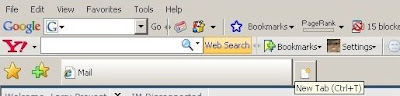
Instead of clicking on the browser icon and bringing up another browser window, all I have to do is click on that little square next to your current tab as pictured below:

Internet Explorer 7 Tabbed Browsing

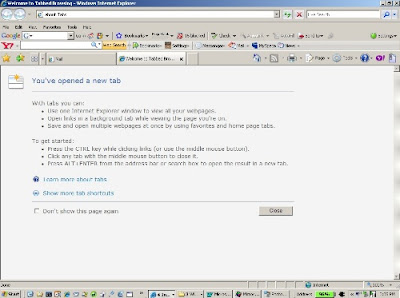
and it will bring up a new tab with a blank page:

Internet Explorer 7 Blank Page

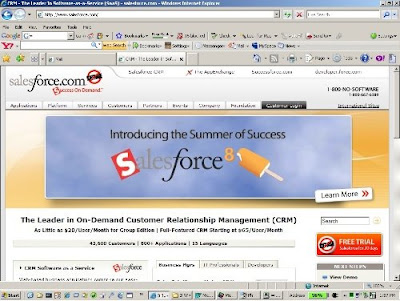
From that page, you can then use your favorite method to navigate to your new destination page on SalesForce.com. You’ll end up with something that looks like this:

Internet Explorer 7 Salesforce.com

Now you have access to your email and your SalesForce.com account.


Let’s say that in addition to this, you also need to have the client’s website available, your company’s website available, the Google search engine up and Google traffic maps up just in case you want to check on traffic before driving out to see the client.


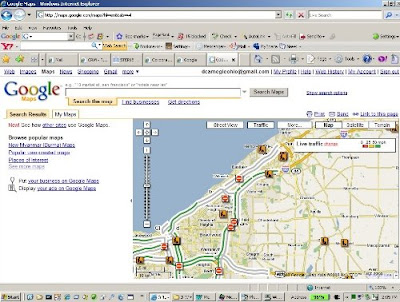
After performing the same function used above, you end up with a browser environment that looks like this:

Internet Explorer 7 Google Maps

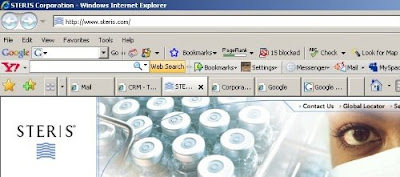
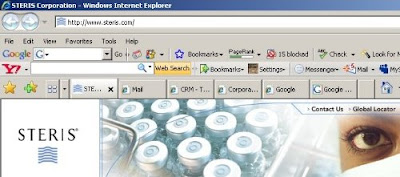
Now here is where the fun starts. You have the ability to rearrange the tabs to best suite your working environment merely by dragging and dropping them. For instance, using the right mouse button, I can grab and move the Steris tab from the middle position:

Internet Explorer 7 Steris Corporation middle tab

to the first position:

Internet Explorer 7 Steris Corporation first tab

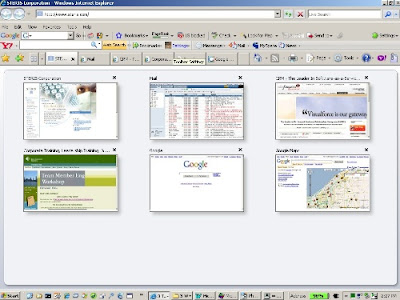
The other thing we can do is to use the quick tab button, located right next to the star and plus sign (or the "add favorites" icon). The quick tab feature gives you a thumbnail view of everything that you might have open, like this:

Internet Explorer 7 quick tab thumbnail


From this view, you can quickly navigate to the tab you need simply by clicking on the thumbnail.


If you use a lot of hosted applications and access them through your browser, using tabbed browsing in this fashion will add some organization to your daily activities and increase your overall effectiveness.