Showing posts with label Blogs. Show all posts

Tuesday, August 24, 2010

Dale Carnegie Sales Trainers - Make Your Blog Posts Easy To Find With These Two Tips


Here's another post for all of you Dale Carnegie trainers and sales reps using Blogger.


In the last tip we looked at how you could optimize the blog title for your particular business keyphrases.  Next, we're going to take a peek at optimizing the title page of each individual blog post. But before we address how Blogger creates the actual posts titles, you need to verify that your blog is creating separate pages for each of your posts and not just appending your text to a monthly archive page.


Searching Through Dale Carnegie Blogs Reveals Two Different Blogger Structures


While cruising some of the your blogs in Blogger, I noticed that a few were behaving differently from the majority of the others.  Take a look at the following. Click on any screenshot to enlarge:


screenshot Dale Carnegie Sample Blog with no post pages.


This is the Dale Carnegie blog I created on Blogger for the last demo.  We see the Blogger Title at point 1, the actual URL at point 2, and the Blog Title again at point 3.  Everything looks good until we put the mouse over the first link, the post title, “Sales Presentation Tips For Sales People”.


Screenshot Dale Carnegie sample blog revealing the blog structure.


Like we pointed out on the Laptop Security For Sales People blog, putting the mouse over any particular link you are interested in will reveal the destination URL down below in the browser's status bar, as seen at point 4.


Notice what happens when we click the link:


Screenshot Sample Dale Carnegie blog after clicking on the first post title.


Notice how the title has changed in point 1.  Remember that whatever is shown in the browser title bar is reflective of the changes in the Title Tag, one of the the things that the different search engines look at to determine what your page is about. 


Now notice the change in the URL at point 2.  That hash mark (#) indicates a specific place on the page that the browser positions at the top of viewing screen.


The post title at point 3 is the specific location on the page that the URL is pointing to and is now at the top of the page.


And if you look down at point 4, you will see the destination URL of the next blog post that my mouse is hovering over.  Surprisingly, the only difference between the current blog post and the next blog post is the number after the hash (#) mark.


This is important because it means that all of my blog posts on this blog are here on the same page only at different locations.


See what happens when the next link is clicked:


Screenshot Dale Carnegie blog after clicking the second post title.


Now the URL that was in the browser's status bar is now the current URL in the browser's address bar, shown in point 2.


The new blog post title has been moved to the top of the screen view, shown in point 3.


And my mouse is positioned over the next blog post which is revealed in the browser status bar at point 4.


The only thing that hasn't changed is the Title Tag which is revealed in the browser title bar, shown in point 1.


So, what does all of this mean?


If your Blogger blog is behaving like this, then it means you aren't optimizing your post titles and your blog  to be found by the search engines. 


And you aren't optimizing your post titles to leverage your marketable keyphrases that your potential clients are searching for. 


While your main keyphrase, “Dale Carnegie” is still in the title of your blog and prominently visible to the search engines, no other keyphrases ever enter your titles.  These are keyphrases are significant to your overall business, such as sales training or leadership training or communication skills.


So how do you optimize your blog posts to be found on the search engines?


How to Optimize Your Blogger Posts


First open your Blogger dashboard and click the “Settings” link.
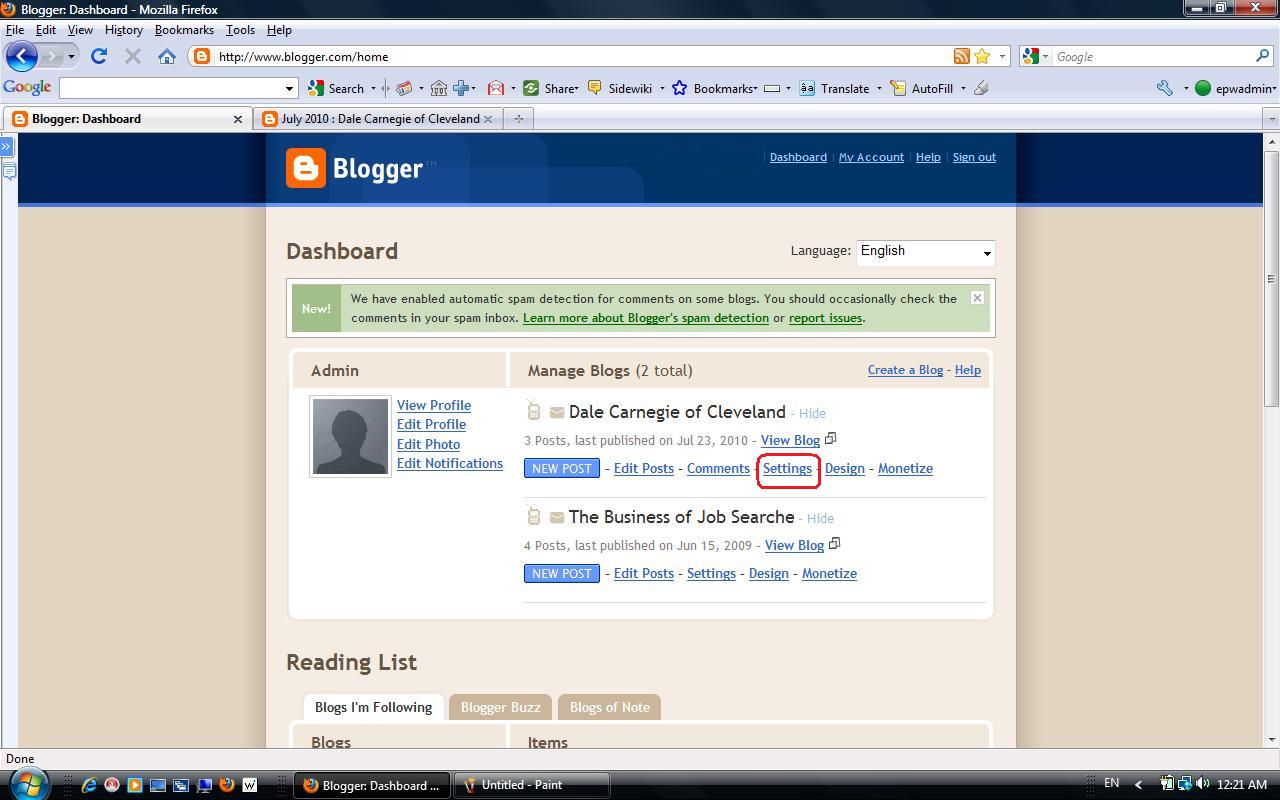


Screenshot The Blogger dashboard.


Then click the “Archive” link


The Blogger dashboard after clicking the settings tab.


The screen that comes up controls how blog posts are created in your blog.  With the current structure, posts are grouped according to their creation date and appended to their respective pages.  In this example, each page represents a month and holds all of the posts for that month.  Naturally, the title of the page uses the date in its title. 


Under the section entitled “Enable Post Pages?” changing the value in the drop down box from “No” to “Yes” will give each of your posts individual and unique web pages, each with their unique and individual titles.  This will enable you to optimize each of your posts according to specific keyphrases. 


Screenshot selecting how your blog will archive posts.


Go ahead and change the value to “Yes” and then save the settings.


Screenshot Enabling page posts.


Blogger Posts As Separate Optimized Pages


Now, the main page of our Blogger blog looks like it did before.  The title, the URL and the page title all looks the same as they did in the first screenshot with one exception.


Wen rolling the mouse over the title of the first post, the destination URL looks different as seen in point 4.  There is no hash marks seen in the URL and it actually has some pretty sweet keywords and keyphrases included in its makeup.


Screenshot The title page of our Dale Carnegie Sample blog with posts having separate pages.


Clicking a post title link that talks about communication provides a different kind of post page:


Screenshot Dale Carnegie sample blog with a separate page for the blog post.


In point 1, we see that the the phrase included in the Title tags now actually includes keyphrases that are relevant to the post topic.   Not only that, but the URL in point 2 also has some very useful keyphrases. 


The title of the blog hasn't changed as seen in point 3. However, the title of the post seen in point 4, is now included in some other vital points in our blog structure.


So here are your next two tips:


  1. Change the way your Blogger blog sets up its posts pages and you'll increase your search engine exposure by increasing the number of Title Tags that the search engines can find.


  2. Include your keyphrases in your post titles and you'll start attracting more of the people looking for your specialized topics.


Incidentally, setting your posts up as separate pages also gives you some measure of control over your other meta tags as well.  We'll take a look at that in a later post.


That’s all for this post.  In the next post we'll take a deeper look at the post titles.


Click here and get RSS updates in your reader  
or here to get them emailed to you.


Good Hunting!


Tuesday, August 10, 2010

Blogger Title Optimization Tip For Dale Carnegie Sales Consultants


Making Your Blogger Blog Easy To Find


As a Dale Carnegie Instructor or sales consultant updating a blog on Blogger, when we push that "publish" button and post our ideas on our blog, one of our objectives is to have someone on the Web read it and make use of the information we are providing. 


  • As trainers, we publish our posts so that our participants can have access to additional ideas and explanations on what we covered in a particular session.


  • As sales consultants selling to a particular group of clients, we want to display how some of our other clients in a similar industry have gained specific benefits from some of the training programs that we offer.


  • And as a franchise owner , we probably want to highlight some of the additional benefits of a new program that we are offering, like a one-day seminar on cold calling.


Whatever reason we are putting our thoughts out there on the Web, one thing is certain—we have a certain audience in mind when we created the post. And typically this audience is a group of people that we’ve done business with in the past.  They know us, they’ve received email from us, or they received a phone call from us.  They know wd exist and they know about our blog.


However, there is another audience that you can get our information to, and unfortunately, there’s a little more research and tweaking that needs to be done on Blogger before you can reach them. 


These are the people that don’t know about you, they don’t know that you exist, and they’ve never heard a peep from you, ever.  They’ve never received a phone call from you,  never received an email from you, and they have never received any type of direct mail pieces from you.


But they get on one of the search engines every day and they search for topics regarding “Sales Training”, or “Leadership Training” or sometimes even, “Dale Carnegie Training”.


Factors That Impact Your Search Engine Visibility


When your clients go online and initiate their search for something like “Dale Carnegie Training”, typically they will turn to Google for assistance.  They will type in something like “Dale Carnegie Training” or  “Dale Carnegie Training in Cleveland” or “Dale Carnegie Training for sales people” and tell Google to go off and find all of the pages dealing with the subject of their particular search.   These phrases are referred to as the keywords or keyphrases.


Now, no one knows for certain what factors are at play in Google’s algorithm except the people that work at Google. However there is a mountain of empirical data suggesting that certain things need to be on your pages to make them relevant for a particular search.


So, if someone is on their laptop and types “Dale Carnegie Training” into the Google search engine, the Google search engine will run off with the keyphrase, check it’s database of indexed pages, and see which pages are relevant for the term “Dale Carnegie Training”.  It will then rank the results in order of importance before displaying the results to the end user.


What kinds of things does the Google Search Engine consider relevent when culling though its indexed database in search of pages that reference Dale Carnegie Training?  Well, things like how many times the term “Dale Carnegie Training” is referenced in the body of the page.  How close to the top of the page “Dale Carnegie Training” occurs.  The number of other pages that link to the page.


And if “Dale Carnegie Training” is in the title of the page.


Think of it this way.  If you were to go to the public library (yes, Amazon hasn’t chased them all away) and search for books dealing with “Dale Carnegie”, you would consider a book entitled “Dale Carnegie’s 30 Human Relations Principles”, or “Dale Carnegie’s Effective Speaking Strategy” to be highly relevant.  However, you would consider a book entitled, “Great Public Speakers of the Early 20th Century” or “Giants in the Field of Professional Development” as less relevant to your search, even if there are some references to Dale Carnegie  inside the book.  The Google search engine will do something similar.


How To Make Your Blogger Blog Friendlier To The Search Engines


So here is your first tip.


If you want your blog to rank high for a keyword or keyphrase pertaining to your business, put the keyword or keyphrase in the title of your blog.  In your case, if you want your blog to be relevant in searches for “Dale Carnegie”, put “Dale Carnegie” in your blog title.


Now do you absolutely need “Dale Carnegie” in the title?  Well, you don’t have to put it in.  But the keyword or keyphrase that you select should reflect the general topic and theme of your blog.


So if you were to create a blog that dealt specifically with the sales process, having the keyphrase, “Sales Strategy”,  “Sales Tactics”,  “Sales Cold Calling”, or “Sales Objections” might be the beginning of a useful set of keyphrase for you and one of those will be the start of a great title for your blog.


So how do you modify the title of your Blogger blog to contain your theme oriented keyphrase?


Glad you asked!


Check it out:


The Blogger Dashboard.


In this first frame, we see the standard Blogger dashboard when you log into your account and the number of Blogger blogs that you have control over.  Here, I’ve created two test blogs, one specifically for all of you crazy Dale Carnegie Trainers and sales consultants to illustrate the point.


A Blogger blog showing all of the places in the browser where you can find the title.


And here we see what the blog actually looks like.  There are a couple of points to note here.  When someone pulls up your web page or your blog, they will see the title reflected in (1) the browser title bar, (3) the current working tab, (5) the actual title on the blog, and (4) the taskbar menu button.  The URL located in the address bar (2) is the actual web address of your blog.  If you were in a hurry, like I was, then you probably created a blog with a URL that is the same or pretty similar to the title of your blog.  This is ok unless you got in the game late and your title and URL are not reflective of the theme of your blog.


Back to the Blogger Dashboard to get to the settings page.


So head back over to the Blogger dashboard and hit the “settings” link.  You are about to make a modification.


The basic settings page in Blogger where you can change the title.


When you hit the “settings”  link, the first section that comes up is the “basic” settings, which is good because this is where you want to make your change. The section that deals with the Title of your blog is the second entry. As you can see, the title of this blog is entered as “Dale Carnegie of Cleveland”.  I’m going to change it to “Dale Carnegie of Akron”:


Modifying the Title of your Blogger Blog to reflect the theme.


And hit the save button down below to save the change.


Now, refreshing the blog page yields:


How Changing The Title of your Blogger Blog is reflected in the browser.


Notice how the title of the blog has changed in (1) the browser title bar, (3) the active tab, (4) the taskbar button, although you can’t see it because it extends off of the button, and (5) the actual title of the blog.  Also notice that the actual URL or web address of the blog (2) did not change. Like it or not, the web address you picked when you set up your blog is going to hang with you. But don’t worry. There plenty of other things to change that will help you in our quest to increase your blog’s visibility.


All of the changes you’ve seen in the browser depends on something in your blog called the title tag, which is also what Google looks for to determine your blog’s relevance to the phrase being searched.  So if you want your blog to be relevant to Google when it begins to search for “Dale Carnegie Training”, putting this phrase in the title of your blog is the way to get it into the title tag of your blog and noticed by the search engines..


Now, will this make you immediately pop up on the first page of the search engine results pages?  Probably not.  There are a number of factors that Google uses to determine relevancy and we’ve only looked at one of those factors.  But like I said, it’s a good start.


One more thing.  Going back to the Blogger dashboard and looking at the basic section where we modified the blog title.  You’ll see two drop down boxes:


The settings page where you can insure your blog is crawled by the search engines.


These settings essentially allow your blog to be found in the Blogger blog roll and tell the search engines that you want them to index your blog. 


If you make these “no”, your current clients can still find your blog because they know your blog address.  It’s all of the other people, the ones that don’t know you exist but are searching for “sales training” or “leadership training” who won’t find you because you told the search engines not to consider your blog when the do their indexing. 


So, seriously, you want these to be “yes”.


That’s it for now.  Stay tuned for additional tips as they become available.


If you want automatic updates, click here and get RSS updates in your reader  
or you can click here to get updates in your email.


Monday, September 7, 2009

Free Social Media Icons For Your Blog

In a past post, I demonstrated how to acquire a badge from Linkedin and install the HTML code in your Blogger blog.


A number of you out there made good of that code and put it to immediate use.


Here’s what you need to know.

Facebook also offers a badge.


Plaxo offers a badge as well.


And Twitter gives you the opportunity to create a window into your tweets right on your blog.


The downside for some of these badges is that they take up a lot of real estate on your blog.


In perusing some of the other blogs out there and getting some insight from my friend Lewis Howes, I discovered a way to shorten down the badges into a few well recognized icons that will still allow your followers to follow you on your favorite social network.


For an example of what I’m talking about, see the sidebar on the right hand side with my social network connections on Linkedin, Facebook and Twitter. I’m still working on YouTube.


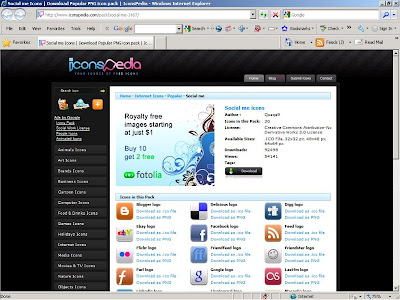
Before we talk about putting the connections into your Blogger blog, you will need to collect the social media icons. You can find these icons at a site called Iconspedia. These icons are subject to the creative commons license. While you can use them free of charge, don't alter the image as the logos belong to the respective companies. Still, for promoting your own personal brand and expanding your social networks, they can't be beat.


When you pull up the site, you’ll notice a bunch of different icon classes. The ones that we will use are the social media icons. You can find them by going to the catalog on the left-hand side and locating the “Internet Icons”. When clicked, it will expand to show your options. Click on the entry entitled “Popular” and then you will see a bunch of selections in the middle window pane.


The ones that we’ll use in the next blog post are in the “Social me” entry. Of course there are a number of other interesting entries and you can get innovative when creating the look and feel of your blog. What we will discuss can be transferred to any of the other icons.


But for now, hit the download button and you will begin downloading a zip file with all of the icons listed. For the “Social me” pack, that would be thirty, including icons for Linkedin, Twitter, Facebook and YouTube.


Be sure to place the zip file in a location where you will have easy access, and after it has finished downloading, go to the file location, double click the file and unpack the icons out of the zip file. This should be fairly straight forward, but if you have trouble, leave a message below and let me know.


You will end up with four variations of every icon: one file will be an ICO file type, and the other three will be of file type PNG in three different sizes, 32 pixels, 48 pixels, and 64 pixels wide.


The ones I’m using on the right side bar are 32 pixels wide.


Once you have these icons extracted, come back for the next post when we’ll look at how to put these into your Blogger blog with the appropriate social network.


Good Selling.

Wednesday, June 17, 2009

Optimizing Blogger Titles For Keywords – Quick Tip For Increasing Your Blog’s Exposure

I came across this little tidbit while doing some other searches on the web concerning lead generation and cold calling.


If you are a sales person, an affiliate marketer or a job seeker, then you probably want to have your blog posts pop up on Google for certain keywords so prospects can take notice of your expertise.


Here are the variables of concern when you are using Google’s publishing tool, Blogger:


  1. Blogger uses the title of your post to create the page file name (the piece of the URL that is right that is between the “/” and the “.html”).


  2. When creating the page file name, Blogger limits the name to the first 39 characters.


  3. After you save the page out with the first page name, you can change the page title to something more catchy to grab people’s attention but it won’t change the page file name.


  4. Search engines look for keywords in the post title, the domain name and the page name, so when you first create your Blogger post, you need to have your keywords within the first 39 characters.


  5. Search engines also determine keyword relevancy by their location in the page title. So you also need to keep your keywords really close to the front of the page title in order to have high relevancy.


So what you find yourself confronted with is a sales engineering problem.


On the one hand, you can write up a page title with all of your keywords within the first 39 characters. The result will be a page name and a page title that will rank very high for your keywords. However, it will look really ugly to people and your audience will probably be more enticed to click on your competitors’ items instead of clicking your entry. And the title broadcasted in your feeds will not induce people to click and read your post either. So what good does it do to get top billing for your keywords if no one wants to click on your post?


On the other hand, you can write a title that looks really enticing to your reader base and makes them drool with anticipation when they see it. However, such language tends to induce a sense of mystery or incite a sense of shock and awe. Such language needs a little more freedom in word placement. The result is that some of your keywords may be placed beyond of the 39-character limit. Net result, your feeds will look enticing, but your organic placement will stink.


So you see the engineering dilemma. You can have very high placement with a title that doesn’t excite your audience very much, or you can have a title that makes your audience drool with excitement if they are willing to skip over to the 10th page of the search engine results.


So needless to say, when you create your Blogger post pages, you will have a little bit of work in front of you.


Here is another challenge. In Blogger, the title for all of your blog posts is preceded by the blog title!


Take a look at this:


Blogger blog showing blog title and the piece that we will optimize in the browser title bar.

This is a test blog I created on Blogger with the title, “The Business of Job Searches”. Notice up on the title bar of the browser is the title of the page. This is typically the same text that’s in the HTML title tag. It's also what the search engines like Google are looking for when determining search relevance.


Notice what happens when I click on a post.


How Blogger creates the title of the post for the title tags and displays it in the browser title bar.

If my keyword is leadership, I should have good organic search results. The word “leadership” is first in my title putting it within the 39 character limit for Blogger page names and way up front in the title. However, notice what is on the browser title bar, “The Business of Job Searches: Leadership Principles in Dale Carnegie Training


In order to have 100% relevancy as far as the title is concerned, my keywords must appear as the first word of the title. Relevancy will drop to below 60% for keywords that have fallen to the 4th position or further. So the further along in the title a word is located, the less relevant Google considers it. If what I see in the browswer title bar is what’s in my HTML title tag, then I’m in trouble. The relevancy for my keyword, leadership, is going to be below 60%. And it’s all because Blogger places the blog title first before the page title where all of my keywords are located.


I guess there’s some wisdom to having short blog titles.


Turns out that there is a way around this. But you’ll have to do some editing of the HTML that makes up the framework of your blog.


First, get to your Blogger dashboard. As you can see here, I’m back as the ‘EPW Test Dude’ with my blog I created back a few posts ago. Look, it even has 5 posts.


Blogger Dashboard targeting the Layout tab.

Go to the Layout section:


Editing HTML in Blogger.

And then to the ‘Edit HTML’ section


HTML for Blogger template showing the piece that creates the post title.

Now you’ll see some pretty ugly stuff. Don’t wig out. The piece that you want to edit is right there in front of you. You don’t have to scroll down or do any kind of search. The piece you want is the following:


<title> <data:blog.pageTitle/> </ title>


This is the piece that essentially writes the blog page title right there in the HTML title tag and puts the title in the title bar of your browser.


What you want to replace that piece of code with is the following code:


<b:if cond=’data:blog.pageType == “index”’>

<title><data:blog.title/></title>

<b:else/>

<title><data:blog.pageName/> | <data:blog.title/></title>

</b:if>


What this piece of code essentially says is, “if the index page is pulled up, also known as the home page or the first page of your Blogger blog, then go ahead and use the blog title in the title of the page and inside the HTML title tags. Otherwise, put the blog post title down first, followed with a "vertical bar" and then with the blog title, stuff all of that inside the HTML title tags and use it as the title of the page.


The result looks like this:


Blogger HTML template with new code in place.

Save the template out by hitting the “Save Template” button below the edit box


Saving the changes in Blogger.

Now, when you go look your post, you will see a slight change:


New look of your blog after the changes have been saved out. Optimized title is now visible to the search engines.

Notice that the blog post title is now first in the title and “Leadership” is now the first word in the title as well as in the page name.


It will take about a week for the results to make their way into the search engines, depending on how often you post and your current traffic. Of course, to increase it relevancy, we’ll have to add some text into the body of the post that has the word leadership. To make it really relevant, we’ll have to add some surrounding text that actually discusses leadership in a way that people find interesting. But for now, celebrate the fact that you now have some power over what’s getting placed in the title tags of your Blogger blog and possibly increasing your organic search results.


Kudos to the guys at Eblog Templates for finding this snippet of code and making it available -- and I’m sure that there are other, more exotic entries out there. I'll let you know as I find them. And I'll keep you updated on what kinds of changes I see in my search results.

Sunday, February 22, 2009

How To Add Your Linkedin Profile Button To Your Blogger Blog

In my last post on promoting your Linkedin profile using the Linkedin button, I explained how to grab the Linkedin button code from your profile page. Even had pictures showing how you can make that happen.

Sales people found it very instructional and appreciated the clarity. It saved them time and they didn’t have to go searching around their account looking for stuff. They could go straight to where they needed to go.

However, many of my fellow sales reps have since come to me saying, “Well, I got this code. What do I do with it now? How do I get it into my blog? Why do I want to do this? Can you do it for me?”

If you’ve created your own blog, then adding the Linkedin profile button is very easy. It’s even easier than creating your blog using Blogger. We ran through the steps of creating your blog in the post entitled How To Create A Blogger Blog And Start Creating Sales Leads.

Here is what you do to add your Linkedin profile button on your Blogger blog.

First login to your Google account. After you get logged in, go to www.blogger.com/home. This will get you to your Blogger dashboard where you can select your blog. Once you select your blog, select the “Layout” tab and then click on the “Page Elements” heading.

Adding your Linkedin profile as a gadget in blogger. The first steps.
The Blogger Page Element Layout Section

Find the link that says “Add a Gadget”. You will be adding an element to your blog. Click the link:

Selecting the Blogger Gadget for adding HTML code
Gadget Selection

As you can see, a new window will appear. You will select the type of element to add from what appears in this window. In this instance, hit the plus sign (“+”) next to the element entitled "HTML/JavaScript". This will open up a new window to add in your HTML code:

The window that will allow you to add your Linkedin Profile code
The Configure HTML/Javascrip Window

Go collect the HTML code from your Linkedin profile page as we talked about in the post entitled Linkedin Profile Enhancement In Less Than 3 1/2 Minutes and paste the code in as shown:

Adding the Linkedin Profile button code into the HTML Gadget
Adding The button Code from Linkedin

Then add a suitable title:

Provide a suitable title for your Linkedin profile
Adding An Appropriate Title for Your Profile

And hit the save button. Your layout page will look like the following:

The HTML Gadget in your Blog Layout
The New Gadget is Now In The Page Layout

And if you hit the “View Blog” link, you’ll be able to see your blog with your new Linkedin button:

The Linkedin Profile Button on your Blogger blog
What The Linkedin Profile Button Looks Like On Your Blog

And you are ready to go. Just like I said, so easy even a caveman can do it.

We’ll talk about adding other elements later. But for now, realize that this is yet another step in starting your personal sales lead generation program and promoting your expertise.

Friday, February 20, 2009

How To Create A Blogger Blog And Start Creating Sales Leads

Times are getting tough and we’ve seen the unemployment numbers growing.

I’ve seen more and more people out there on the job market and at job fares looking for something, anything, to keep them moving forward.

Incidentally, I’ve also seen a number of questions from sales people in the Manta sales community asking the same questions about finding suitable leads for prospecting. Questions like, “Where can I find real estate leads?” or “How can I get viable leads for cars?” or “How do I sell my stuff when no one is buying anything?”

This tells me a couple of things.

  1. Sales managers are coming down hard on sales people to produce and increase revenue.

  2. Sales people are looking for ways to increase their production.

  3. Sales people are looking for ways to find viable leads.

  4. Sales people are using the same old tired and unproductive methods of generating those leads.
There are no quick fixes or shortcuts that sales people can take to get them to the top of the mountain. There are no magic words or phrases that a salesperson can utter and have their prospect eating out of their hands. But I do think that there are words and phrases that salespeople can utter that will cost them the sale. I do think that there are things that salespeople can do that will cause their prospects to run to the competition. It’s less about finding shortcuts and more about eliminating bad, inefficient behaviors or ineffective activities.

Here is something to do that will help establish your credibility and reduce some of those bad and inefficient behaviors.

Write a blog.

Yes, maintain a blog. I’ve recommended to several people that if they are looking to generate leads, increase their visibility and enhance their credibility, the best and fastest way to do that is by getting themselves published on the web. When your prospects go to Google looking to solve their problems, you want your name and your solution to pop up. You want their mindshare when they are on the web looking to solve their problems. And these ‘problems’ can be anything from “what should I look for when buying a used car?” to “Where can I find a prospective employee?”

Unfortunately, most sales people don’t write or maintain a blog because they associate blogs with technical wizardry. It takes to much time. It’s too complicated. There’s too much technical trouble involved.

Well, this just isn’t true.

The tools available today make web publishing so easy, even the proverbial caveman can do it.

So if you are just starting out in sales, a seasoned sales veteran, an entrepreneur running a small business or unemployed looking for your next gig, here is a quick and dirty start to blogging using the Google web-publishing tool, Blogger to promoting your ideas and get yourself known.

First, you will need to access your gmail account. Google centralizes all of it various services around specific accounts. So if you have a gmail account, you can access several other Google services and Blogger is one of them.

So sign in to your Google account as if you were signing into your gmail. Then when the Google page comes up, open the page www.blogger.com and sign in using your Gmail name and password. Here I am logging in as my favorite defunct login, epwadmin.

Use Blogger to build your Lead Generation Program
Logging into Blogger

When I get in, you can see that this is my first time. I have no blogs created. The first step is to begin to create your first blog so hit the “create your blog now” button to get started.

Use Blogger to build your Lead Generation Program
The First Step, Getting Started

The next step is naming your blog. Here, you can see that I’ve taken the job hunting route and called the blog “The Business of Job Searches” (hey, job hunting is a sales exercise as well. And very popular right about now).

For the Domain name, I’ve taken the name “Findmeajob”. Here’s where things get a little tricky. You want the Domain Name to reflect the type of business or the interest as closely as possible. It will have a big impact on how your blog pops up on searches when searchers type in their search query.

Use Blogger to build your Lead Generation Program
Creating The Name and Domain Name of your blog

The tricky part arrives when you have a popular search term and someone else has already grabbed that domain name

Use Blogger to build your Lead Generation Program
If your Name is taken, Blogger will tell you to create a new one

So a different Domain Name has to be selected.

Use Blogger to Enhance your Cold Calling Strategy
Name and Domain Name creation

Domain Name selection can be a critical factor in determining your blog placement when your prospects perform their searches. If I were writing a blog on my expertise on selling cars, then having a domain name containing the words “car” and “sales” would be preferable to a name like “moondog.com”.

Once you have the Domain Name set, type in the word verification. This essentially tells the system that a human being is setting this up and not an automatic bot.

Use Blogger to Enhance your Cold Calling Strategy
Word Verification

Once you all of the information set up, click the continue button to get to the next page.

Use Blogger to Enhance your Cold Calling Strategy
Template Selection

Now you have an opportunity to pick a template. This supplies the general look and feel of your blog. Once this is selected, all you have to do in the future is type in your content and not set up each page separately. Don’t worry. You can always select a different template at a later date. For this example, we’ll just select the first template. Once you have the template selected, click continue:

Use Blogger to Enhance your Cold Calling Strategy
Blog is ready. Time to get started.

And you are done. Now when you click the “start blogging” you are ready to start.

Use Blogger to Enhance your Cold Calling Strategy
Blogger Content Form

At this point, you can start putting in your content supply a title for your posts in the “Title” box and your content in the bigger box below. And you are in business.

If you click the “view content” link, you will see what your blog looks like to the rest of the world:

Use Blogger to Enhance your Cold Calling Strategy
The way your Blogger blog appears to the online community

This will get you started building the skeleton of the blog. There will be other considerations such as titles (see the post on what needs to be in the title to make the search engines happy) and content. But it’s been my experience that sales people have more of a challenge just getting started. Why? Because they feel that starting a blog is a technical exercise and they use that to keep them from exploring this avenue for cultivating leads.

Another recommendation here. Under your account, you can set up multiple blogs. I would recommend one of the first domain names you set up be your name.

Next step is to begin writing on your expertise to attract those looking for solutions.

Sunday, February 8, 2009

Little Known Blogger Secret That Will Drive The Search Engines Absolutely Bananas!

Blogger logo
In working through my last Lotus Notes post here, I noticed something that may be of use to you if you are using the tool, Blogger, to run your blog.
This is where you really start to appreciate some of the work performed by your Friendly Neighborhood Search Engine Marketing Team.
And if you are an independent sales rep, consultant or small businessperson maintaining your own blog for promotional purposes, you definitely don't want to let this optimization tip pass you by.
Check it out.

A Quick SEO Overview
First, a couple of things so you can appreciate and understand the workaround you are about to perform. This section is for the sales rep or the businessperson who knows very little about Search Engine Marketing. If you are familiar with Search Engine Optimization terms, skip down to the Ugly Filename section. But if the mere mentioning of terms like “Keywords” or “domain name” causes you a certain amount of angst, then give a quick glance through the following section.

When you first start talking with a Search Engine Marketing professional, the first thing they will ask you about are your Keywords. These are the words that you are targeting as “yours”. The words that you want to be associated with your business, your website and your blog.
When someone in your target market types these keywords and phrases into the search box on Google, it means that they are looking for something that involves this phrase. You want the search engine to find your site or blog as “extremely relevant” and put it right on the first page of the returned results. For example, let’s say that you are a real estate agent promoting yourself and you are offering prime real estate in San Jose. You want your site, and specifically a page on your site, to pop up when someone types into the search engine, “prime real estate in San Jose”.

Here are 4 things you need to look at to help make this happen:

  1. Your domain name: First secure a domain name that has some collection of your keywords in it. This is the site name that your prospects will type in, and is a part of the URL. In this example, our hypothetical real estate agent would try to secure a name with a combination of real estate and San Jose, like www.sanjoseprimerealestate.com.

  2. Page filename: The next thing to do is to actually have a page on your site with a filename that has some collection of these keywords. You’ve seen this before when improving your profile with Linkedin. Using your name in creating your public profile URL, such as www.linkedin.com/in/dalecarnegie makes your profile a lot more relevant to searched key phrases that include your name, over a profile like www.linkedin.com/in/345892.

  3. Page Content: Then there is the content inside your page. You want to have a good mix of these keywords when you create your copy while making it readable for your clients, visitors and prospects.

  4. MetaTags: Lastly, put your keywords in your Meta Tags. This will have an influence on search engine performance, albeit a small one thanks to some unscrupulous behavior back in the late ‘90s.

That’s a quick overview of using keywords to optimize your online presence and becoming relevant in your prospect’s online search. If you are selling your product or services and you want to take advantage of some of the ‘easy to use’ online publishing tools available to get your business going, these are the first things to look at.

Naturally, there are some other things to consider, but we’ll save those for another day. For now, these 4 elements are enough and the second one in particular, will enable us to improve our performance with Blogger.

Using Blogger With Pretty Titles And Ugly Filenames

Now let’s look at how to increase our site relevancy with Blogger.

First, find the “Enable Post Pages?” variable and set that to “Yes” in order to increase your search engine exposure. This will turn every one of your posts into it’s own page complete with it’s own page filename.

You will find this in the archive menu under the Settings tab in the administrator’s dashboard of your blog.

Optimizing Blogger Post Titles for Search Engines

Once you have this done, Blogger will create a separate html page for each post and it will use the post title to create the filename for that page.

And that’s great!

Except that Blogger will only take the first 39 characters! Any spaces between words will be replaced with a dash and they still count towards your 39 characters!
Complicating matters even more, Blogger only takes full words when creating the filename. So if your title has a word that starts at character 33 and goes to character 41, Blogger will not pick up the first 6 characters of that word for your title. It will remove the word completely, which means your file name is now only 32 characters long.
So here is the challenge. When most of us are promoting our posts through email or an RSS feeder, we typically make the post title presentable to attract people. We want them to click, to read further, and to take some kind of action.
As a result, we typically create a headline for our post title like, “5 ways to create compelling value for your customers with Dale Carnegie Training” or “5 Little Known Sales Secrets using Dale Carnegie Communication Techniques”. While these titles may incite some curiosity from your prospects or visitors, the file name will look something like:
  • Title: 5 Ways To Create Compelling Value For Your Customers With Dale Carnegie Sales Training
  • Resulting filename: 5-ways-to-create-compelling-value-for.html
and
  • Title: 5 Little Known Sales Secrets Using Dale Carnegie Communication Techniques
  • Resulting filename: 5-Little-Known-Sales-Secrets-using-Dale.html

This is not what you want if your keywords are industry specific words or phrases like “Dale Carnegie Training” or even “sales communication techniques”. These particular keywords never made it into the top 39-character window and they won’t make it into the filename of the post page. Remember, if my prospect types in “Dale Carnegie Training” on Google, then my post will have relevance if “Dale Carnegie Training” is in the copy, but it won’t be nearly as relevant as a page that has relevant content and a filename that includes the phrase “Dale Carnegie Training”.

So you take your key words and you stuff them all in the front of the post title like, “Dale Carnegie Sales Communication techniques” or “Dale Carnegie Sales Training Creates Compelling Value For Customers”. Then the filename of your pages will look like:
  • Title: Dale Carnegie Sales Communication Techniques
  • Resulting filename: Dale-carnegie-sales-communication.html
and
  • Title: Dale Carnegie Sales Training Creates Compelling Value For Customers
  • Resulting filename: Dale-carnegie-sales-training-creates.html

This is better. The industry specific keywords “Dale Carnegie Sales Training” or “Dale Carnegie Sales Communication” are right there in the page name. Good for optimizing the pages around specific key phrases, but these titles really don’t motivate people to click. They read like the ingredients on a soup can label.

So your Friendly Neighborhood Search Engine Marketing Team has to run a delicate balancing act between people and machines. And if you are a sales rep writing your own blog for self-promotion, then you are that team.
You have to create a title that is optimized so the Search Engine will index it favorably for certain phrases, yet it has to be compelling enough for human beings to take some action when they see it.
Sometimes these two things run counter to each other, especially if you are using the curiosity approach to getting your prospect to click on the title. What you need is a way to insure that your keywords are in the filename, but gives you the freedom to create a compelling headline for your prospects.

A Quick Workaround

Here is a way to get around this challenge and make the system work for you.

  • When creating your post on Blogger, optimize your post title for your key words so the search engines will find it easily and index it appropriately. That is, put your keywords in the first 39 spaces that you have available. Blogger will use them in your title when you hit the publish button.

  • Create you content as usual. Use compelling copy but also include your keywords in the body of the copy.

  • Publish the page as you typically do.

  • After successfully publishing the page, go back and edit the page. This time type in a title that potential prospects will find interesting and compelling.

  • Republish the page.
Now your post will have a filename that is different from your post title. For example, I could have a filename like:

Dale-carnegie-sales-training-creates.html

But I can rewrite my post title to read like:

5 Explosive Techniques To Drive Your Sales! Dale Carnegie Sales Training Reveals How!

So now there is appealing candy for the Search Engines and appealing candy for human prospects as well. This should give you an edge when you publish your blog posts.
Oh, one more thing to keep in mind. Search Engines also place a high degree of importance on where your keywords are placed in your copy.
So that title that you just rewrote to make more compelling for your human readers still needs to have those keywords somewhere in it.
Isn’t balance fun?