Showing posts with label Internet Explorer. Show all posts

Monday, December 21, 2009

Did You Get Phished By Chase?


The holiday season is upon us. And with the usual holiday cheer and shopping rush, we can expect the usual host of… unsavory characters to make attempts at getting access to our online accounts and personal information.


It’s gonna happen so just expect to see it. I know I am.


I expect to see the email from an ebay participant telling me that they are anxious to complete the transaction and get the merchandise in question if I would just take the time and complete the conveniently provided form.


I expect to see the email from the “fake” Paypal company telling me that my account has been compromised and that I need to go to the account setup page to update my password. And they are even kind enough to provide a link to the page for my convenience.


I expect to get he occasional email from some “security professional” from a small bank telling me that my account has been compromised and that I need to use the supplied link to update my security credentials. Never mind the fact that I never heard of the bank let alone opened an account with them.


As the year draws to a close, more people will come under increased pressure between closing business at work and creating a memorable holiday event at home. Consequently, they won’t scrutinize those urgent and ominous looking email messages from “the bank” in their email inbox.


A Social Engineering Lesson From A Counterfeiter


When I was in college, one of the books that made the rounds in our class was an underground classic entitled “The Poor Man’s James Bond”. It was in the same class of books that included “The Anarchist’s Cook Book” so you can make a pretty good guess about some of the content.


I had obtained a copy of a copy of a copy, so you can imagine what the print quality and readability of this dog-eared document was like. Yeah, it was pretty ugly. There was one section, however, that was still in fairly good shape with no dropouts or additional markings, probably because it was the section that the past owners were the least interested in. This was the counterfeiting section.


I don’t remember all of the steps that the author outlined to create a passable counterfeit bill back then. In truth, I found it equally uninteresting and way too much work. However, I do remember the suggestions he made for passing one off.


His suggestion was to take the play money, roll it around in the dirt, and bake it in the oven to give it that well used look and feel. Then take it to a place of business during the busiest time of the day and buy something small with it. On checking out, get in the line manned by the greenest kid you can find with as many irate people as possible to make the purchase.


Now, when the counterfeiter is standing there with their dirty, smelly counterfeit $20 bill and a big smile, all the kid sees is a mile-long line of irate, rude people behind him. In an effort to get everyone out the door with as little drama as possible, the kid won’t put up much of a challenge to the counterfeiter.


I’m happy to say that measures have been implemented that make copying US bills extremely difficult if not impossible. But the social engineering piece is still out there and the phishers are making heavy use of the basic principles.


They are sending you email with official logos and lots of words implying urgency and importance in an effort to get you to react emotionally instead of responding logically.


They will do this at a time when they know you have will have lots of email from other companies making offers. And all of this will occur at a time when you are trying to juggle 7 different things while struggling under time and emotional pressures.


Email Phishing Example


Take this entry for example. Now I know that phishers have used banks in the past, but this is the first time I’ve seen them use bait this big.


As you can see, I’ve received what appears to be an urgent request from Chase asking me to update my security information (let's forget for the moment that I don't have an account with Chase, a dead give away that it's a phishing scam, and proceed with the usual shock and suprise). My guess is that the big oversized logo coupled with phrases like “site authorization”, “security”, and “strongly advise” will stir up some type of visceral response. The additional title of “Chase Security” is probably there to make me pay less attention to the name of the person encouraging me to change my security information. (John Edwards? Wasn’t he running for President of the US?)


They’ve even provided a convenient link for me to sign into my account.


Rolling the mouse of the link will give you the URL in the browser status bar (that bar down below that has the word “Done”). While I don’t have it shown here, the URL turned out to be a shortened URL, probably to hide the final destination. The URL was http//nuurl.us/97061.


Naturally, this thing stinks to high heaven. It has ‘phish’ written all over it. First there is the simple fact that I’ve received this email from a bank. Banks will never send out email regarding security. They may use email for marketing purposes and tell you about some new wonderful services they are about to unleash or some new shops where you can spend your money. But for any type of serious communication you can expect to get something in the USPS or a phone call. You can forget about email. They are wound way to tight for that.


Then there’s the URL, a masked URL that ultimately doesn’t go back to the Chase domain. Of course you can’t see where it goes until you click on it. But the very fact that it’s hidden is a very telling sign.


There are some other unspoken rules here as well. Nothing hard and fast, but it is something that I’ve observed. Banks are large corporations. As such, their IT department typically has a set structure when creating email accounts, and that structure is usually something like firstname.lastname@companydomain.com.


The other unspoken rule is the punctuation. Again, there is no hard and fast rule here on how someone in the banking industry should behave, but when was the last correspondence you got from a banker that had an exclamation point, let alone three? When someone in the financial industry is writing some type of correspondence, they tend to stick with the facts and figures. They leave little room for any emotional involvement. In general, if you get a correspondence from a bank punctuated with exclamation points, chances are it’s not from someone in the financial industry.


Now, clicking on this link results in the following:


So if you have the smartscreen filter turned on in IE8 (or Chrome or Firefox), you will see a screen similar to this. Congratulations! You’ve done your part to thwart the phishers.


However, with the smartscreen filter turned off, we see a page that looks like the following:


I imagine that Chase has a page somewhere that looks like this. The guys who are sending this one out probably just ripped off the template and modified it for their purposes. The phrase, “Chase.com Demo” is a giveaway.


Also look at the URL in the address bar. There is no reference to any legitimate business domain name, which is why the smartscreen filter kicked this thing to the skids.


The other thing here to notice is that this is not a secure connection. Anytime a web connection is transferring secure data, the connection will encrypt the data before it sends it. If the connection is secure, you will see something like the following:


This is for a Google Analytics account. The connection is secured using the https protocol. The quick way to tell if the connection is secure is to look for the “lock” at the top of the browser. If you don’t see the lock at the top and the site is requesting that you pass over secure or sensitive data like passwords or account numbers, it’s time to cut and run.


This site from “Fake Chase” is using the unsecured protocol, it isn’t locked down and it’s asking for secure information, like your User ID, the password to your Chase account, social security number…


And of course, no financial institution would ask you for this kind of information via email, ever. So don’t give it out.


This holiday season while you are out doing the “shop ‘til you drop” thing, remember that there are some unsavory characters who are also out there shopping… for you and your bank account numbers. Don’t let them get yours.


Stay vigilant.


Saturday, August 22, 2009

Open Multiple Yahoo Accounts In IE8

Gaining Access To Multiple Yahoo Accounts Using IE8


OK. I logged into my second Yahoo email account recently. I typically login to my catchall account everyday to look at the spam, check email marketing samples, and look for anything of value that may find it’s way into the account. But I login to my “technical” account about once or twice a month.


For the longest time, if you had multiple Yahoo email accounts, you had to log out of the one that you had opened on your machine because Yahoo only allowed access to one email account per machine.

So before I could open a browser window and log into my Yahoo email tech account, I had to log out of my Yahoo catchall account, even if I had the “stay logged in” box unchecked.


Well, I made a mistake two days ago. I was on my laptop logged into my Yahoo email catchall account in IE8 and I opened a second IE8 window and opened the Yahoo site. To my amazement, it didn’t come up with my catchall account logged in.


Out of curiosity, I signed in to my Yahoo email technical account and it allowed me to do that. Furthermore, I was still logged in on my Yahoo email catchall account in the first IE8 browser.


What happened?


I mean, for the longest time, when IE7 was in full bloom and IE8 was nothing more than a sparkle in an engineer’s mind, I could only login to one Yahoo account per machine. Which meant that while I could open up multiple browsers and login to multiple Google accounts simultaneously, Yahoo only allowed me to login to one account on one machine regardless of the number of IE7 sessions I opened.


Now, my Yahoo accounts were behaving almost like my Gmail accounts.


First, I thought it was the new IE8 browser configuration that accounted for the change.


But that didn’t wash. I had another machine still running IE7 and I saw the same behavior on both configurations with Yahoo email accounts.


Then I thought that maybe it was because I also had Firefox and Chrome loaded on my test rig.


But that didn’t make sense either because I had no other browsers on my machine that was running IE7. My Yahoo email accounts still behaved like my Gmail accounts on both machines.


Eventually, I determined that regardless if I was running IE7, IE8, Firefox, or Chrome in combination with Windows XP, Windows Vista Ultimate or Vista Business, Yahoo mail was now behaving more like Google Gmail.


After much brain wracking and gnashing of teeth, I came to the conclusion that it was nothing that I had done. It was something that the good people at Yahoo had done.


Was it a result of the new portal look?


Did it happen after they killed off their personal blog and briefcase services?


Or maybe the team up with Microsoft had something to do with it.


I’m still waiting to hear something from the Yahoo team.


For now, know that if you configure your IE8 browser using the “nomerge” flag, your machine will handle multiple Yahoo email accounts the same way that if handles multiple Gmail email accounts.

Thursday, December 18, 2008

New Internet Explorer Security Exploit Update

Microsoft has released a patch for Internet Explorer. Apparently, there was enough of a concern for them to move outside of their regular patch schedule.
If you are using IE7 on Windows XP with SP2 or SP3, you can find the patch here.
If you are using IE7 on Windows Vista or Vista with SP1, you can find that here.
If you are running Internet Explorer on any other configuration, you can find your configuration on the Microsoft Security Bulletin MS08-078 here.
If you are running any combination of Internet Explorer on a Microsoft Operating system, you are strongly encouraged to install the patch.
Original article update here:
Microsoft Releases Critical Internet Explorer Patch

Wednesday, December 17, 2008

New Internet Explorer Security Exploit

When I was a kid, I remember reading a story about a chicken that got bonked on the head by a falling acorn and she thought that the sky was falling. Chicken Little then went around to every animal she could find proclaiming that “the sky was falling”. The result was a small panic spreading throughout the farm, until one of them looked up and saw that the sky was still exactly where it started that morning.
I’d like to say that this report is a “Chicken Little” event, but it has just the right amount of paranoia that says, “maybe, this time, the sky is falling”. I’m talking about the new flaw found in Internet Explorer.
Originally thought to be confined to IE7, it now seems to encompass everything from IE5 to the latest beta release of IE8. This exploit also appears to have been bought, sold and employed since about October.
If you are into the technical details from Microsoft Technet or looking for sites to avoid, you can find them here.
If you are running IE7 MS suggest that you turn on Data Execution Prevention. What this essentially does is marks certain memory locations as protected (as in locations that only the OS should have access to) and if a piece of code attempts to write to those locations (malicious or otherwise) DEP will shut the program down and send you an alert.
To turn on DEP in your Windows XP system, open your control panel and click on the “System” icon. The "System Properties" window will come up.
Click on the "Advance" tab, go down to the "Performance" section and click on the “Settings” button. This will bring up the "Performance Options".
Under the "Performance Options" window, click the "Data Execution" tab. Make sure to select the radio button next to “Turn on DEP for all programs and services except those I select”.
Then hit the “Apply” button. Your system will request a reboot before the changes take effect.
While this may be a stopgap measure, I don’t think it is a true solution. If it were, we wouldn’t see the level of concern from the security experts or even Microsoft.
Current recommendation is to use one of the other browsers out there (Firefox, Chrome, or Safari) until MS issues a suitable patch.
Current projected assumption, based on Microsoft’s past patch schedule puts this at Jan 13, 2009.


Reference articles are here from washingtonpost.com:

Microsoft Investigating Reports of New IE7 Exploit

Microsoft: Big Security Hole in All IE Versions

Article from Chris Null on Yahoo

Friday, May 23, 2008

Organize Your Sales Activity Through IE7 Tabs

Here is a quick tip for all of you sales reps out there that use Internet Explorer 7 or later.


One of the newer innovations that Microsoft put into it's browser is the tab feature that essentially allows you to have different web pages in a single browser window. As a sales rep, you’re probably saying to yourself, "Yeah, It looks good. There are plenty of bells and whistles in IE7. The techie guys are either drooling over it or they are busy tearing it apart along with Microsoft. But what does it do for me?"


There are a few things that you can do with this feature that may make your life a little bit easier.


Let’s say that you, the sales rep, are out in the field and you use a lot of the hosted applications out there, like SalesForce.com, browser-based email, any Google apps or maybe even GrandCentral internet phone setup.


Using the old method of opening each app in a separate browser, you would end up with a number of different browsers windows cluttering up your desktop. You would spend a lot of time minimizing and maximizing browser windows and trying to figure out which browser held the application you were looking for at the time. It’s a recipe for disorganization.


Using the tabs, you can open one browser window and use the tabs to navigate to your different applications.

For example, let’s say you use a mail application such as the web version of Lotus Notes. While reading your email, you come across a note from one of you clients over at Steris Corporation (just as an example) and you need to check them out in Salesforce.com.


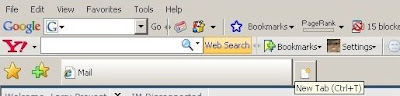
Instead of clicking on the browser icon and bringing up another browser window, all I have to do is click on that little square next to your current tab as pictured below:

Internet Explorer 7 Tabbed Browsing

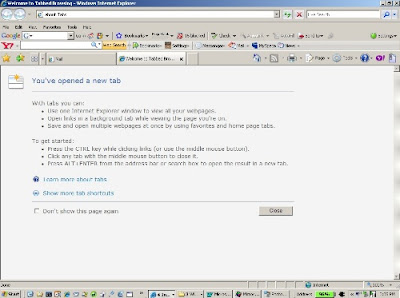
and it will bring up a new tab with a blank page:

Internet Explorer 7 Blank Page

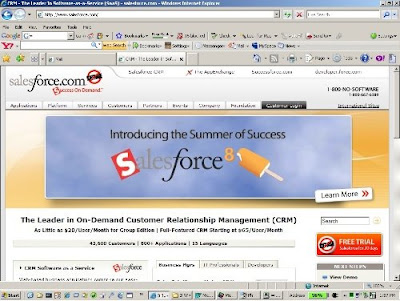
From that page, you can then use your favorite method to navigate to your new destination page on SalesForce.com. You’ll end up with something that looks like this:

Internet Explorer 7 Salesforce.com

Now you have access to your email and your SalesForce.com account.


Let’s say that in addition to this, you also need to have the client’s website available, your company’s website available, the Google search engine up and Google traffic maps up just in case you want to check on traffic before driving out to see the client.


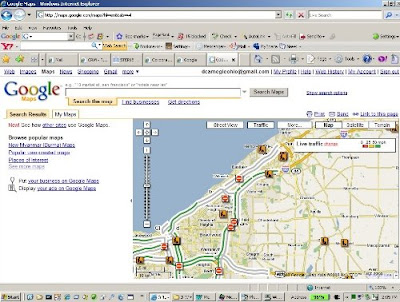
After performing the same function used above, you end up with a browser environment that looks like this:

Internet Explorer 7 Google Maps

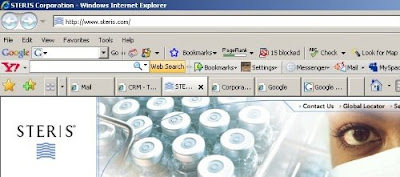
Now here is where the fun starts. You have the ability to rearrange the tabs to best suite your working environment merely by dragging and dropping them. For instance, using the right mouse button, I can grab and move the Steris tab from the middle position:

Internet Explorer 7 Steris Corporation middle tab

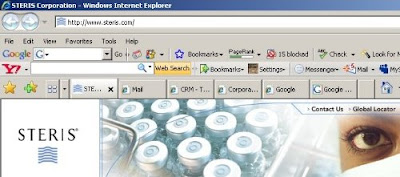
to the first position:

Internet Explorer 7 Steris Corporation first tab

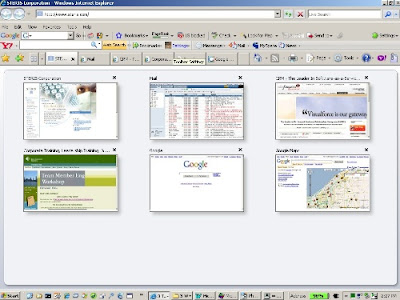
The other thing we can do is to use the quick tab button, located right next to the star and plus sign (or the "add favorites" icon). The quick tab feature gives you a thumbnail view of everything that you might have open, like this:

Internet Explorer 7 quick tab thumbnail


From this view, you can quickly navigate to the tab you need simply by clicking on the thumbnail.


If you use a lot of hosted applications and access them through your browser, using tabbed browsing in this fashion will add some organization to your daily activities and increase your overall effectiveness.