Showing posts with label Gmail. Show all posts

Wednesday, September 10, 2014

5 Million Gmail Addresses and Passwords Leaked: What This Means for You

Gmail
Earlier today, news started making the rounds that a list of 5 million Gmail addresses and passwords was leaked on Tuesday, Sept 9 2014.


So what we are probably seeing is actually some hacker’s private stash rather than someone looking for help in cracking a password database.

Saturday, August 22, 2009

Open Multiple Yahoo Accounts In IE8

Gaining Access To Multiple Yahoo Accounts Using IE8


OK. I logged into my second Yahoo email account recently. I typically login to my catchall account everyday to look at the spam, check email marketing samples, and look for anything of value that may find it’s way into the account. But I login to my “technical” account about once or twice a month.


For the longest time, if you had multiple Yahoo email accounts, you had to log out of the one that you had opened on your machine because Yahoo only allowed access to one email account per machine.

So before I could open a browser window and log into my Yahoo email tech account, I had to log out of my Yahoo catchall account, even if I had the “stay logged in” box unchecked.


Well, I made a mistake two days ago. I was on my laptop logged into my Yahoo email catchall account in IE8 and I opened a second IE8 window and opened the Yahoo site. To my amazement, it didn’t come up with my catchall account logged in.


Out of curiosity, I signed in to my Yahoo email technical account and it allowed me to do that. Furthermore, I was still logged in on my Yahoo email catchall account in the first IE8 browser.


What happened?


I mean, for the longest time, when IE7 was in full bloom and IE8 was nothing more than a sparkle in an engineer’s mind, I could only login to one Yahoo account per machine. Which meant that while I could open up multiple browsers and login to multiple Google accounts simultaneously, Yahoo only allowed me to login to one account on one machine regardless of the number of IE7 sessions I opened.


Now, my Yahoo accounts were behaving almost like my Gmail accounts.


First, I thought it was the new IE8 browser configuration that accounted for the change.


But that didn’t wash. I had another machine still running IE7 and I saw the same behavior on both configurations with Yahoo email accounts.


Then I thought that maybe it was because I also had Firefox and Chrome loaded on my test rig.


But that didn’t make sense either because I had no other browsers on my machine that was running IE7. My Yahoo email accounts still behaved like my Gmail accounts on both machines.


Eventually, I determined that regardless if I was running IE7, IE8, Firefox, or Chrome in combination with Windows XP, Windows Vista Ultimate or Vista Business, Yahoo mail was now behaving more like Google Gmail.


After much brain wracking and gnashing of teeth, I came to the conclusion that it was nothing that I had done. It was something that the good people at Yahoo had done.


Was it a result of the new portal look?


Did it happen after they killed off their personal blog and briefcase services?


Or maybe the team up with Microsoft had something to do with it.


I’m still waiting to hear something from the Yahoo team.


For now, know that if you configure your IE8 browser using the “nomerge” flag, your machine will handle multiple Yahoo email accounts the same way that if handles multiple Gmail email accounts.

Thursday, June 4, 2009

Put A Linkedin HTML Signature In Gmail To Make Your Message Stand Out

While perusing my web stats, I noticed that a search kept coming up regarding how to put a LinkedIn button into an email signature, Gmail in particular.


I’ve seen these queries in the past and had even looked into putting some kind of LinkedIn button into the signature file of my Google Gmail messages. While there are email apps that will allow you to use html tags in the signature file, the one downfall of Gmail messaging is that it will only accept text characters in the signature box. It won’t accept HTML tags.


Today, however, I decided to take a quick spin on Google to see what was actually out there. And while I didn’t find a clean solution, I did find “A” solution and a Linkedin function that I had previously forgotten about.


However, this is truly a case of “buyer beware” because this workaround is more of a hack.


While it is simple to do and it will integrate your Linkedin signature with your outgoing Gmail message, this is not a push button configuration.


Here’s what I mean.


With your typical text signature, like the one you’ve typed into the Gmail signature box, the minute you hit the “compose message” button to create your next message, your signature file is automatically loaded into the body of the message before you even start typing.


You set the signature up once and you don’t have to worry about it ever again, until you are ready to change it.


With this particular hack, you have to install it every time you send off an email.


So if you have 15 emails to send off, this activity is what is commonly called overhead and it can be very high, significantly impacting your time management activities.


Do you want to do this activity every time you send out an email? Probably not.

But if you are trying to impress a client, or if you want to push your LinkedIn profile to encourage your certain clients and prospects to connect with you, this could be a useful hack.


Still game? Then read on.


Getting The Linkedin HTML Signature


Turns out that some email apps will allow you to compose a rich signature file. Unfortunately, Gmail is not on that list. Gmail doesn’t support HTML tags in the signature file – yet. However, Gmail will allow you to drag and drop HTML objects into the compose pane. So you can create an email signature that looks real nice in LinkedIn, highlight the whole object, copy it and then past it into the body of the Gmail message.


First, get the signature.


Log into your Linkedin account and scroll down to the bottom of the page:
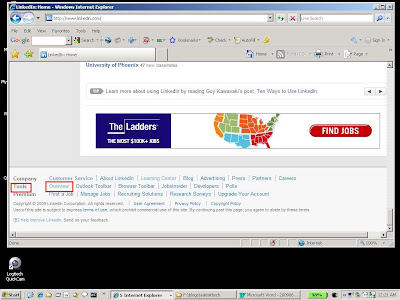


Finding the location for the linkedin HTML signature generator.

When you get to the bottom, you will see menu items that are more utilitarian. You want the “overview” link under the “Tools” heading. This will take you to the Linkedin Tools overview page. On this one, get down to the “email Signature” section and hit the “Try it Now” button:
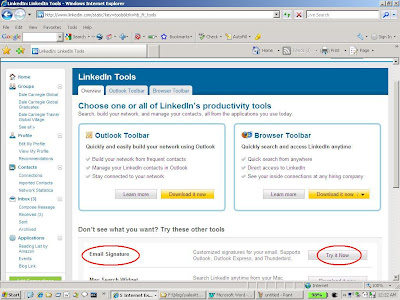


Linkedin Tools page.


When you hit the “Try it Now” button, you will be taken to the “Create Email Signature” page where you will have an opportunity to create your signature.
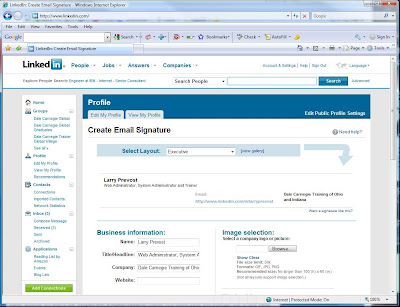


The LinkedIn signature setup page.

Linkedin provides several layouts that you can choose from.
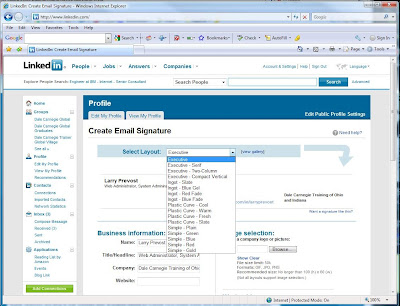


Selecting the Linkedn signature layout.

Select your layout that you like. Linkedin will also backfill some of the information, like your name, headline and company. But you will need to supply some additional information like phone number, the address or your company’s website, any additional websites that you have, and your company’s address.
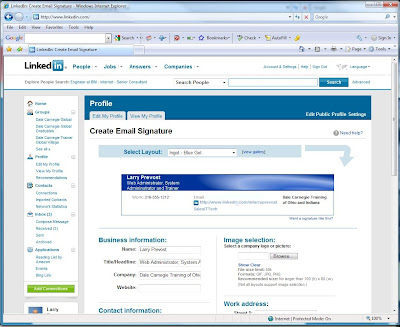


The Linkedin Signature template generated.

Once you have it set up the way you want, you can transfer it over to your Gmail message.


Bringing over your Linkedin Signature over to your Gmail Message


In another browser window, open our Gmail account. Here we again are using our old standby, the EPW Test Dude.
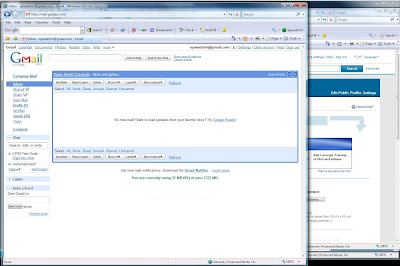


Preparing Gmail to receive the Linkedin HTML signature.

Go ahead and compose your message as you normally would:
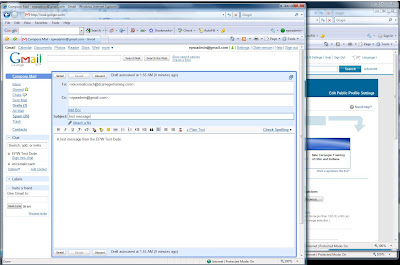


Creating the Gmail message.

When you have your message composed, go back to the browser holding your Linkedin session and highlight the signature that you just made:
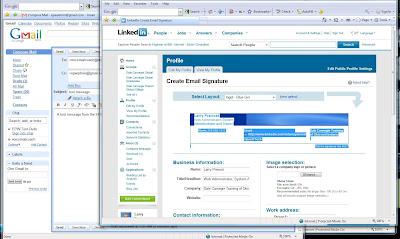


Highlighting the LinkedIn signature.

Then, copy the highlighted section:


Copying the LinkedIn Signature Object

And then paste it into the body of the message that you have finished composing in your Gmail browser window:
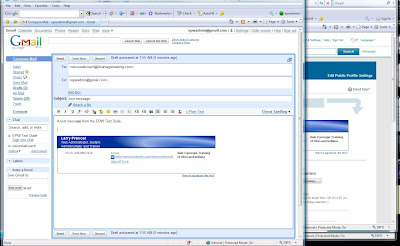
Pasting the LinkedIn Signature Object into the Gmail Message Pane.

Then, it just a matter of sending it off. When it arrives, it will look something like this:
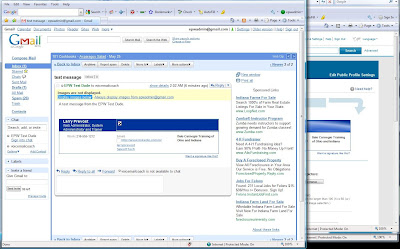


What the message looks like when delivered.

You’ll notice the funny little boxes in place of the missing graphics. The graphics aren’t gone. They just aren’t being displayed. As with most email programs, the default setup is to not display graphics, so count on your recipient not initially seeing your pictures. However, by merely clicking the link “Display images below” you can make the app display them.
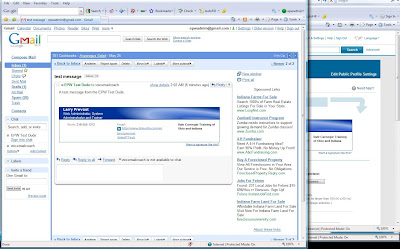


What the LinkedIn Signature looks like after the graphics are allowed to display.

See?


Quick, simple and easy.


However, this is by no means automated. So as I said at the top of this post, you’ll have to repeat the process for every email that you want to send out with the Linkedin profile signature. Not exactly the most heartwarming of thoughts, but it is possible to include a Linkedin profile in our outgoing email.


Kudos to Amit Agarwal at Digital Inspiration for discovering the hack.

Thursday, January 22, 2009

Convert DOCX Files to DOC Files Using These 3 Quick Methods

The other day, one of the Inside Sales Team approached me with a request. He said that a client of his had sent him a document in a format that he couldn’t open on his system. He said, “I got this document that I can’t open, my computer is asking to go online to find a program to open the file. It’s in a DOCX format. What the heck is that?”
Well, boys and girls, DOCX is Microsoft’s new format used by MS Office 2007. The format is XML compliant and can’t be opened by the older versions MS Office, in particular, older versions of MS Word.
However, if you have MS Office 2007, you can save the document out in the older DOC format to be backward compatible. Since the DOCX format is the native format for Office 2007, you’ll have to make a conscious effort to save out your document in the older format.
Now, it’s not always convenient to say to a client, “Hey, I’m still using the older version of MS Word and don’t want to cough up the $500 bucks to buy the latest version of MS Office. Could you save your document in the older format?” Doesn’t leave the best impression in the minds of your client.
However, there are some options you have at your disposal:

  1. Download and install the Microsoft Office Compatibility Pack for 2007 Office. If you are using Microsoft Windows XP or Vista with an older version of the Microsoft Office suite, you can load the Compatibility pack from here to give your older version of Word the ability to open the newer format. Get it here at the Microsoft website.
  2. Use Gmail. For all of you Lotus Notes users out there, you probably received a DOCX document at some point in your life, saved it to your system and said, “Great! Now what?” Here’s what you can do. Forward it to your gmail account (or if you are already forwarding all of your Lotus Notes email to your gmail account, simply login to your gmail account) and open the email. Because the DOCX format is based on the XML standard, gmail will let you open the document and view it in a browser window. Yep, if you need to see that document right away, simply open your email in gmail, scroll down to the attachment, click on the link that says, “View as HTML” and the document will open in a browser window. It won’t have all of the pretty pictures and if the document uses textboxes, those text boxes will be treated as images and you won’t see them. Not exactly the best solution, but it will retain some of the formatting and it will give you a quick peek at what your client is sending you allowing you to respond quickly.
  3. Use one of the online conversion tools. A few of organizations out there that have recognized a need in the online community. I’m talking about how to convert files from one format to another without spending $200 or more to buy the original software. How valuable would it be to you to have the capability to convert a DOC file into a PDF file to send to one client, a DOCX file to send to another, and then turn it into a JPG file to drop onto your website? The good folks at Zamzar have recognized this need in the community and have created a service to allow you to do exactly that type of conversion. And, it’s free, with certain restrictions, of course. If you are plan on doing over 100 MB of file conversion, you’ll have to pay for the service. But for those few documents that we sales people need, this service can be a godsend. And it’s pretty simple and straightforward to use. Seriously. Even a caveman can do it. You can find the site here at zamzar.com.