Monday, December 21, 2009

Did You Get Phished By Chase?


The holiday season is upon us. And with the usual holiday cheer and shopping rush, we can expect the usual host of… unsavory characters to make attempts at getting access to our online accounts and personal information.


It’s gonna happen so just expect to see it. I know I am.


I expect to see the email from an ebay participant telling me that they are anxious to complete the transaction and get the merchandise in question if I would just take the time and complete the conveniently provided form.


I expect to see the email from the “fake” Paypal company telling me that my account has been compromised and that I need to go to the account setup page to update my password. And they are even kind enough to provide a link to the page for my convenience.


I expect to get he occasional email from some “security professional” from a small bank telling me that my account has been compromised and that I need to use the supplied link to update my security credentials. Never mind the fact that I never heard of the bank let alone opened an account with them.


As the year draws to a close, more people will come under increased pressure between closing business at work and creating a memorable holiday event at home. Consequently, they won’t scrutinize those urgent and ominous looking email messages from “the bank” in their email inbox.


A Social Engineering Lesson From A Counterfeiter


When I was in college, one of the books that made the rounds in our class was an underground classic entitled “The Poor Man’s James Bond”. It was in the same class of books that included “The Anarchist’s Cook Book” so you can make a pretty good guess about some of the content.


I had obtained a copy of a copy of a copy, so you can imagine what the print quality and readability of this dog-eared document was like. Yeah, it was pretty ugly. There was one section, however, that was still in fairly good shape with no dropouts or additional markings, probably because it was the section that the past owners were the least interested in. This was the counterfeiting section.


I don’t remember all of the steps that the author outlined to create a passable counterfeit bill back then. In truth, I found it equally uninteresting and way too much work. However, I do remember the suggestions he made for passing one off.


His suggestion was to take the play money, roll it around in the dirt, and bake it in the oven to give it that well used look and feel. Then take it to a place of business during the busiest time of the day and buy something small with it. On checking out, get in the line manned by the greenest kid you can find with as many irate people as possible to make the purchase.


Now, when the counterfeiter is standing there with their dirty, smelly counterfeit $20 bill and a big smile, all the kid sees is a mile-long line of irate, rude people behind him. In an effort to get everyone out the door with as little drama as possible, the kid won’t put up much of a challenge to the counterfeiter.


I’m happy to say that measures have been implemented that make copying US bills extremely difficult if not impossible. But the social engineering piece is still out there and the phishers are making heavy use of the basic principles.


They are sending you email with official logos and lots of words implying urgency and importance in an effort to get you to react emotionally instead of responding logically.


They will do this at a time when they know you have will have lots of email from other companies making offers. And all of this will occur at a time when you are trying to juggle 7 different things while struggling under time and emotional pressures.


Email Phishing Example


Take this entry for example. Now I know that phishers have used banks in the past, but this is the first time I’ve seen them use bait this big.


As you can see, I’ve received what appears to be an urgent request from Chase asking me to update my security information (let's forget for the moment that I don't have an account with Chase, a dead give away that it's a phishing scam, and proceed with the usual shock and suprise). My guess is that the big oversized logo coupled with phrases like “site authorization”, “security”, and “strongly advise” will stir up some type of visceral response. The additional title of “Chase Security” is probably there to make me pay less attention to the name of the person encouraging me to change my security information. (John Edwards? Wasn’t he running for President of the US?)


They’ve even provided a convenient link for me to sign into my account.


Rolling the mouse of the link will give you the URL in the browser status bar (that bar down below that has the word “Done”). While I don’t have it shown here, the URL turned out to be a shortened URL, probably to hide the final destination. The URL was http//nuurl.us/97061.


Naturally, this thing stinks to high heaven. It has ‘phish’ written all over it. First there is the simple fact that I’ve received this email from a bank. Banks will never send out email regarding security. They may use email for marketing purposes and tell you about some new wonderful services they are about to unleash or some new shops where you can spend your money. But for any type of serious communication you can expect to get something in the USPS or a phone call. You can forget about email. They are wound way to tight for that.


Then there’s the URL, a masked URL that ultimately doesn’t go back to the Chase domain. Of course you can’t see where it goes until you click on it. But the very fact that it’s hidden is a very telling sign.


There are some other unspoken rules here as well. Nothing hard and fast, but it is something that I’ve observed. Banks are large corporations. As such, their IT department typically has a set structure when creating email accounts, and that structure is usually something like firstname.lastname@companydomain.com.


The other unspoken rule is the punctuation. Again, there is no hard and fast rule here on how someone in the banking industry should behave, but when was the last correspondence you got from a banker that had an exclamation point, let alone three? When someone in the financial industry is writing some type of correspondence, they tend to stick with the facts and figures. They leave little room for any emotional involvement. In general, if you get a correspondence from a bank punctuated with exclamation points, chances are it’s not from someone in the financial industry.


Now, clicking on this link results in the following:


So if you have the smartscreen filter turned on in IE8 (or Chrome or Firefox), you will see a screen similar to this. Congratulations! You’ve done your part to thwart the phishers.


However, with the smartscreen filter turned off, we see a page that looks like the following:


I imagine that Chase has a page somewhere that looks like this. The guys who are sending this one out probably just ripped off the template and modified it for their purposes. The phrase, “Chase.com Demo” is a giveaway.


Also look at the URL in the address bar. There is no reference to any legitimate business domain name, which is why the smartscreen filter kicked this thing to the skids.


The other thing here to notice is that this is not a secure connection. Anytime a web connection is transferring secure data, the connection will encrypt the data before it sends it. If the connection is secure, you will see something like the following:


This is for a Google Analytics account. The connection is secured using the https protocol. The quick way to tell if the connection is secure is to look for the “lock” at the top of the browser. If you don’t see the lock at the top and the site is requesting that you pass over secure or sensitive data like passwords or account numbers, it’s time to cut and run.


This site from “Fake Chase” is using the unsecured protocol, it isn’t locked down and it’s asking for secure information, like your User ID, the password to your Chase account, social security number…


And of course, no financial institution would ask you for this kind of information via email, ever. So don’t give it out.


This holiday season while you are out doing the “shop ‘til you drop” thing, remember that there are some unsavory characters who are also out there shopping… for you and your bank account numbers. Don’t let them get yours.


Stay vigilant.


Sunday, December 6, 2009

SEO Tip For Bloggers using Blogger


Today I discovered one of those Search Engine Optimization challenges that you know about but you don’t realize how it affects you until someone points it out.


In this case, Google pointed it out for me and it involved the blogging platform, Blogger.


Since I started using Blogger, I’ve been using the default font style when I create my posts. Then I would select certain blocks of copy, and sometimes all of it, and change the font style from the default Times Roman or Trebuchet, to Arial.


So imagine my surprise when, after looking at the Google Webmaster tools, it indicated that two of my major SEO keywords were “span” and “family”.


In looking at the code in the “Edit HTML” window, I saw a new “span” tag for every paragraph with text that I changed to a different font family.


Clearly, when considering Search Engine Optimization, the better way to change the overall font family for the body of the post is through the CSS.


With Blogger, the best way to do this is through the “Fonts and Colors” menu under the “Layout” tab. From there you can control a variety of variables like the “Page Background Color”, the “Blog Title Font” and “Post Text Font” to name a few.


And the modifications won’t interfere with your SEO efforts.


By using the “Fonts and Colors” menu under the “layout” tab, Google’s webmaster tools won’t show that your main SEO keywords are words that are actually a part of your site infrastructure. Then your Search Engine Optimization efforts can really make an impact.


Of course, if you are using one of the customized templates, you may have to modify the HTML before the Blogger platform will have access to the appropriate CSS variables. Just one more thing to be aware of.


Tuesday, November 24, 2009

Twitter Application Hootsuite Is Now A Social Network Communication Hub


Hootsuite Updated To Interface With LinkedIn And Facebook


Last night, I noticed that the 3rd party professional Twitter application Hootsuite went offline for maintenance. I really didn’t think much of it initially. Services like this go offline occasionally for routine maintenance and upgrades. But after 6 hours of not being able to connect to it, I knew something big was in the works.


Over the past few weeks, Twitter has made some major additions, one of them being the addition of lists. Professional Twitter desktop applications like Tweetdeck, and Seesmic recently made modifications to accommodate these updates, everything from the new way Twitter handles retweets to connecting with other social networks like Linkedin.

When Hootsuite came back online this morning, there were plenty of changes integrated into its structure. Now, not only does Hootsuite manages and organizes your Twitter lists, but it also interfaces to your Linkedin and Facebook accounts. This opens a host of possibilities which I’m sure we’ll explore in the coming weeks.

I’m sure that there were some other changes and upgrades integrated into Hootsuite to make it more stable and increase its flexibility. And I’m also fairly sure that there will be a few… surprises that we’ll stumble across as we move forward—you can’t make a major upgrade like this without a few oversights. But, these latest upgrades, coupled with some of the other features that were already integrated into the application, turns Hootsuite into a powerful social network communication platform.

You can find more descriptions of the Hootsuite upgrades on their blog here.

Monday, September 7, 2009

Free Social Media Icons For Your Blog

In a past post, I demonstrated how to acquire a badge from Linkedin and install the HTML code in your Blogger blog.


A number of you out there made good of that code and put it to immediate use.


Here’s what you need to know.

Facebook also offers a badge.


Plaxo offers a badge as well.


And Twitter gives you the opportunity to create a window into your tweets right on your blog.


The downside for some of these badges is that they take up a lot of real estate on your blog.


In perusing some of the other blogs out there and getting some insight from my friend Lewis Howes, I discovered a way to shorten down the badges into a few well recognized icons that will still allow your followers to follow you on your favorite social network.


For an example of what I’m talking about, see the sidebar on the right hand side with my social network connections on Linkedin, Facebook and Twitter. I’m still working on YouTube.


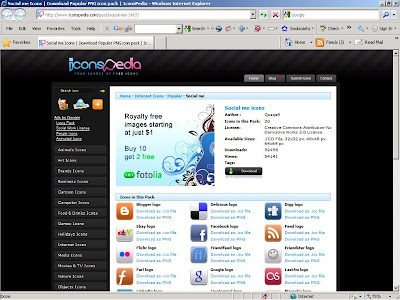
Before we talk about putting the connections into your Blogger blog, you will need to collect the social media icons. You can find these icons at a site called Iconspedia. These icons are subject to the creative commons license. While you can use them free of charge, don't alter the image as the logos belong to the respective companies. Still, for promoting your own personal brand and expanding your social networks, they can't be beat.


When you pull up the site, you’ll notice a bunch of different icon classes. The ones that we will use are the social media icons. You can find them by going to the catalog on the left-hand side and locating the “Internet Icons”. When clicked, it will expand to show your options. Click on the entry entitled “Popular” and then you will see a bunch of selections in the middle window pane.


The ones that we’ll use in the next blog post are in the “Social me” entry. Of course there are a number of other interesting entries and you can get innovative when creating the look and feel of your blog. What we will discuss can be transferred to any of the other icons.


But for now, hit the download button and you will begin downloading a zip file with all of the icons listed. For the “Social me” pack, that would be thirty, including icons for Linkedin, Twitter, Facebook and YouTube.


Be sure to place the zip file in a location where you will have easy access, and after it has finished downloading, go to the file location, double click the file and unpack the icons out of the zip file. This should be fairly straight forward, but if you have trouble, leave a message below and let me know.


You will end up with four variations of every icon: one file will be an ICO file type, and the other three will be of file type PNG in three different sizes, 32 pixels, 48 pixels, and 64 pixels wide.


The ones I’m using on the right side bar are 32 pixels wide.


Once you have these icons extracted, come back for the next post when we’ll look at how to put these into your Blogger blog with the appropriate social network.


Good Selling.

Saturday, August 22, 2009

Open Multiple Yahoo Accounts In IE8

Gaining Access To Multiple Yahoo Accounts Using IE8


OK. I logged into my second Yahoo email account recently. I typically login to my catchall account everyday to look at the spam, check email marketing samples, and look for anything of value that may find it’s way into the account. But I login to my “technical” account about once or twice a month.


For the longest time, if you had multiple Yahoo email accounts, you had to log out of the one that you had opened on your machine because Yahoo only allowed access to one email account per machine.

So before I could open a browser window and log into my Yahoo email tech account, I had to log out of my Yahoo catchall account, even if I had the “stay logged in” box unchecked.


Well, I made a mistake two days ago. I was on my laptop logged into my Yahoo email catchall account in IE8 and I opened a second IE8 window and opened the Yahoo site. To my amazement, it didn’t come up with my catchall account logged in.


Out of curiosity, I signed in to my Yahoo email technical account and it allowed me to do that. Furthermore, I was still logged in on my Yahoo email catchall account in the first IE8 browser.


What happened?


I mean, for the longest time, when IE7 was in full bloom and IE8 was nothing more than a sparkle in an engineer’s mind, I could only login to one Yahoo account per machine. Which meant that while I could open up multiple browsers and login to multiple Google accounts simultaneously, Yahoo only allowed me to login to one account on one machine regardless of the number of IE7 sessions I opened.


Now, my Yahoo accounts were behaving almost like my Gmail accounts.


First, I thought it was the new IE8 browser configuration that accounted for the change.


But that didn’t wash. I had another machine still running IE7 and I saw the same behavior on both configurations with Yahoo email accounts.


Then I thought that maybe it was because I also had Firefox and Chrome loaded on my test rig.


But that didn’t make sense either because I had no other browsers on my machine that was running IE7. My Yahoo email accounts still behaved like my Gmail accounts on both machines.


Eventually, I determined that regardless if I was running IE7, IE8, Firefox, or Chrome in combination with Windows XP, Windows Vista Ultimate or Vista Business, Yahoo mail was now behaving more like Google Gmail.


After much brain wracking and gnashing of teeth, I came to the conclusion that it was nothing that I had done. It was something that the good people at Yahoo had done.


Was it a result of the new portal look?


Did it happen after they killed off their personal blog and briefcase services?


Or maybe the team up with Microsoft had something to do with it.


I’m still waiting to hear something from the Yahoo team.


For now, know that if you configure your IE8 browser using the “nomerge” flag, your machine will handle multiple Yahoo email accounts the same way that if handles multiple Gmail email accounts.

Wednesday, June 17, 2009

Optimizing Blogger Titles For Keywords – Quick Tip For Increasing Your Blog’s Exposure

I came across this little tidbit while doing some other searches on the web concerning lead generation and cold calling.


If you are a sales person, an affiliate marketer or a job seeker, then you probably want to have your blog posts pop up on Google for certain keywords so prospects can take notice of your expertise.


Here are the variables of concern when you are using Google’s publishing tool, Blogger:


  1. Blogger uses the title of your post to create the page file name (the piece of the URL that is right that is between the “/” and the “.html”).


  2. When creating the page file name, Blogger limits the name to the first 39 characters.


  3. After you save the page out with the first page name, you can change the page title to something more catchy to grab people’s attention but it won’t change the page file name.


  4. Search engines look for keywords in the post title, the domain name and the page name, so when you first create your Blogger post, you need to have your keywords within the first 39 characters.


  5. Search engines also determine keyword relevancy by their location in the page title. So you also need to keep your keywords really close to the front of the page title in order to have high relevancy.


So what you find yourself confronted with is a sales engineering problem.


On the one hand, you can write up a page title with all of your keywords within the first 39 characters. The result will be a page name and a page title that will rank very high for your keywords. However, it will look really ugly to people and your audience will probably be more enticed to click on your competitors’ items instead of clicking your entry. And the title broadcasted in your feeds will not induce people to click and read your post either. So what good does it do to get top billing for your keywords if no one wants to click on your post?


On the other hand, you can write a title that looks really enticing to your reader base and makes them drool with anticipation when they see it. However, such language tends to induce a sense of mystery or incite a sense of shock and awe. Such language needs a little more freedom in word placement. The result is that some of your keywords may be placed beyond of the 39-character limit. Net result, your feeds will look enticing, but your organic placement will stink.


So you see the engineering dilemma. You can have very high placement with a title that doesn’t excite your audience very much, or you can have a title that makes your audience drool with excitement if they are willing to skip over to the 10th page of the search engine results.


So needless to say, when you create your Blogger post pages, you will have a little bit of work in front of you.


Here is another challenge. In Blogger, the title for all of your blog posts is preceded by the blog title!


Take a look at this:


Blogger blog showing blog title and the piece that we will optimize in the browser title bar.

This is a test blog I created on Blogger with the title, “The Business of Job Searches”. Notice up on the title bar of the browser is the title of the page. This is typically the same text that’s in the HTML title tag. It's also what the search engines like Google are looking for when determining search relevance.


Notice what happens when I click on a post.


How Blogger creates the title of the post for the title tags and displays it in the browser title bar.

If my keyword is leadership, I should have good organic search results. The word “leadership” is first in my title putting it within the 39 character limit for Blogger page names and way up front in the title. However, notice what is on the browser title bar, “The Business of Job Searches: Leadership Principles in Dale Carnegie Training”


In order to have 100% relevancy as far as the title is concerned, my keywords must appear as the first word of the title. Relevancy will drop to below 60% for keywords that have fallen to the 4th position or further. So the further along in the title a word is located, the less relevant Google considers it. If what I see in the browswer title bar is what’s in my HTML title tag, then I’m in trouble. The relevancy for my keyword, leadership, is going to be below 60%. And it’s all because Blogger places the blog title first before the page title where all of my keywords are located.


I guess there’s some wisdom to having short blog titles.


Turns out that there is a way around this. But you’ll have to do some editing of the HTML that makes up the framework of your blog.


First, get to your Blogger dashboard. As you can see here, I’m back as the ‘EPW Test Dude’ with my blog I created back a few posts ago. Look, it even has 5 posts.


Blogger Dashboard targeting the Layout tab.

Go to the Layout section:


Editing HTML in Blogger.

And then to the ‘Edit HTML’ section


HTML for Blogger template showing the piece that creates the post title.

Now you’ll see some pretty ugly stuff. Don’t wig out. The piece that you want to edit is right there in front of you. You don’t have to scroll down or do any kind of search. The piece you want is the following:


<title> <data:blog.pageTitle/> </ title>


This is the piece that essentially writes the blog page title right there in the HTML title tag and puts the title in the title bar of your browser.


What you want to replace that piece of code with is the following code:


<b:if cond=’data:blog.pageType == “index”’>

<title><data:blog.title/></title>

<b:else/>

<title><data:blog.pageName/> | <data:blog.title/></title>

</b:if>


What this piece of code essentially says is, “if the index page is pulled up, also known as the home page or the first page of your Blogger blog, then go ahead and use the blog title in the title of the page and inside the HTML title tags. Otherwise, put the blog post title down first, followed with a "vertical bar" and then with the blog title, stuff all of that inside the HTML title tags and use it as the title of the page.


The result looks like this:


Blogger HTML template with new code in place.

Save the template out by hitting the “Save Template” button below the edit box


Saving the changes in Blogger.

Now, when you go look your post, you will see a slight change:


New look of your blog after the changes have been saved out. Optimized title is now visible to the search engines.

Notice that the blog post title is now first in the title and “Leadership” is now the first word in the title as well as in the page name.


It will take about a week for the results to make their way into the search engines, depending on how often you post and your current traffic. Of course, to increase it relevancy, we’ll have to add some text into the body of the post that has the word leadership. To make it really relevant, we’ll have to add some surrounding text that actually discusses leadership in a way that people find interesting. But for now, celebrate the fact that you now have some power over what’s getting placed in the title tags of your Blogger blog and possibly increasing your organic search results.


Kudos to the guys at Eblog Templates for finding this snippet of code and making it available -- and I’m sure that there are other, more exotic entries out there. I'll let you know as I find them. And I'll keep you updated on what kinds of changes I see in my search results.

Thursday, June 4, 2009

Put A Linkedin HTML Signature In Gmail To Make Your Message Stand Out

While perusing my web stats, I noticed that a search kept coming up regarding how to put a LinkedIn button into an email signature, Gmail in particular.


I’ve seen these queries in the past and had even looked into putting some kind of LinkedIn button into the signature file of my Google Gmail messages. While there are email apps that will allow you to use html tags in the signature file, the one downfall of Gmail messaging is that it will only accept text characters in the signature box. It won’t accept HTML tags.


Today, however, I decided to take a quick spin on Google to see what was actually out there. And while I didn’t find a clean solution, I did find “A” solution and a Linkedin function that I had previously forgotten about.


However, this is truly a case of “buyer beware” because this workaround is more of a hack.


While it is simple to do and it will integrate your Linkedin signature with your outgoing Gmail message, this is not a push button configuration.


Here’s what I mean.


With your typical text signature, like the one you’ve typed into the Gmail signature box, the minute you hit the “compose message” button to create your next message, your signature file is automatically loaded into the body of the message before you even start typing.


You set the signature up once and you don’t have to worry about it ever again, until you are ready to change it.


With this particular hack, you have to install it every time you send off an email.


So if you have 15 emails to send off, this activity is what is commonly called overhead and it can be very high, significantly impacting your time management activities.


Do you want to do this activity every time you send out an email? Probably not.

But if you are trying to impress a client, or if you want to push your LinkedIn profile to encourage your certain clients and prospects to connect with you, this could be a useful hack.


Still game? Then read on.


Getting The Linkedin HTML Signature


Turns out that some email apps will allow you to compose a rich signature file. Unfortunately, Gmail is not on that list. Gmail doesn’t support HTML tags in the signature file – yet. However, Gmail will allow you to drag and drop HTML objects into the compose pane. So you can create an email signature that looks real nice in LinkedIn, highlight the whole object, copy it and then past it into the body of the Gmail message.


First, get the signature.


Log into your Linkedin account and scroll down to the bottom of the page:


Finding the location for the linkedin HTML signature generator.

When you get to the bottom, you will see menu items that are more utilitarian. You want the “overview” link under the “Tools” heading. This will take you to the Linkedin Tools overview page. On this one, get down to the “email Signature” section and hit the “Try it Now” button:


Linkedin Tools page.


When you hit the “Try it Now” button, you will be taken to the “Create Email Signature” page where you will have an opportunity to create your signature.


The LinkedIn signature setup page.

Linkedin provides several layouts that you can choose from.


Selecting the Linkedn signature layout.

Select your layout that you like. Linkedin will also backfill some of the information, like your name, headline and company. But you will need to supply some additional information like phone number, the address or your company’s website, any additional websites that you have, and your company’s address.


The Linkedin Signature template generated.

Once you have it set up the way you want, you can transfer it over to your Gmail message.


Bringing over your Linkedin Signature over to your Gmail Message


In another browser window, open our Gmail account. Here we again are using our old standby, the EPW Test Dude.


Preparing Gmail to receive the Linkedin HTML signature.

Go ahead and compose your message as you normally would:


Creating the Gmail message.

When you have your message composed, go back to the browser holding your Linkedin session and highlight the signature that you just made:


Highlighting the LinkedIn signature.

Then, copy the highlighted section:


Copying the LinkedIn Signature Object

And then paste it into the body of the message that you have finished composing in your Gmail browser window:

Pasting the LinkedIn Signature Object into the Gmail Message Pane.

Then, it just a matter of sending it off. When it arrives, it will look something like this:


What the message looks like when delivered.

You’ll notice the funny little boxes in place of the missing graphics. The graphics aren’t gone. They just aren’t being displayed. As with most email programs, the default setup is to not display graphics, so count on your recipient not initially seeing your pictures. However, by merely clicking the link “Display images below” you can make the app display them.


What the LinkedIn Signature looks like after the graphics are allowed to display.

See?


Quick, simple and easy.


However, this is by no means automated. So as I said at the top of this post, you’ll have to repeat the process for every email that you want to send out with the Linkedin profile signature. Not exactly the most heartwarming of thoughts, but it is possible to include a Linkedin profile in our outgoing email.


Kudos to Amit Agarwal at Digital Inspiration for discovering the hack.